
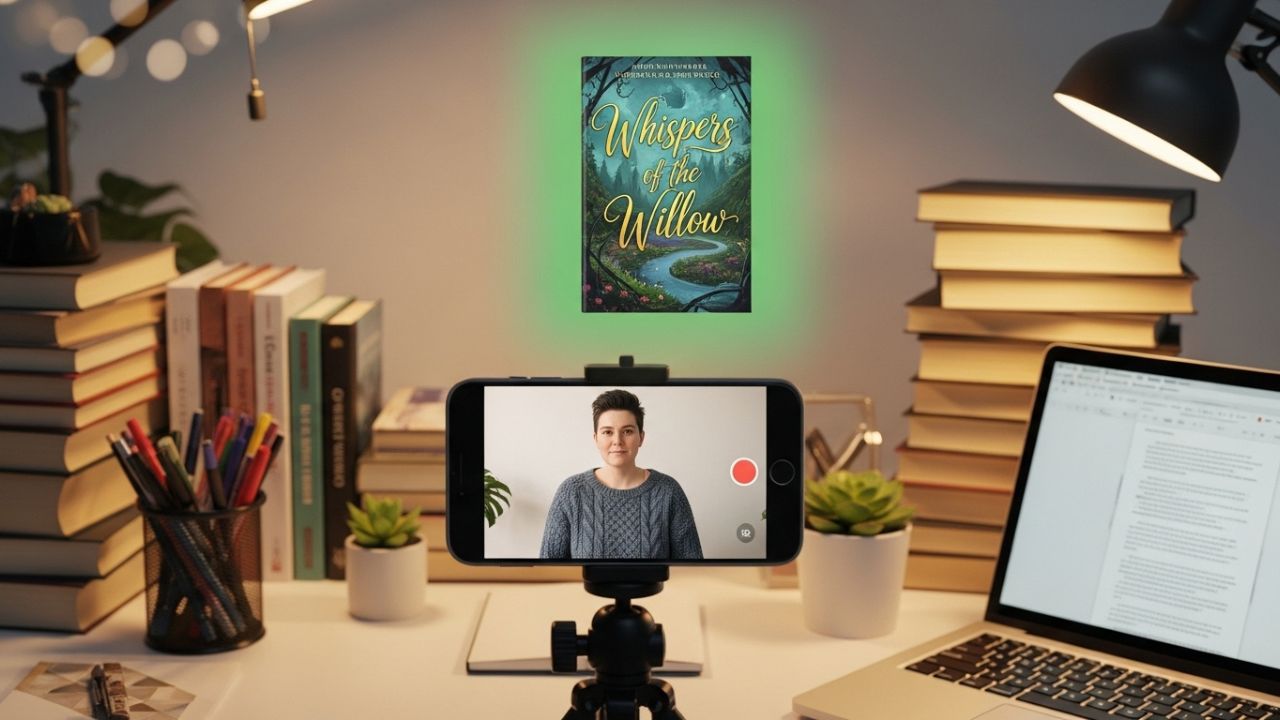
Instagram has evolved far beyond a simple photo-sharing app. Today, it’s a powerful storytelling platform—one where authors, writers, and literary creators can build a brand, grow an audience, and promote their books in surprisingly creative ways. Among Instagram’s most engaging tools is the Green Screen effect, a built-in feature available in Reels and Stories that lets you layer yourself over images or videos.
If you’re an author looking to stand out, the Green Screen effect is one of the easiest and most dynamic tools you can use to create visually compelling content without any technical expertise. It’s fun, it’s intuitive, and it opens the door to professional-looking videos—even if you’re filming from your kitchen table in pajamas. 😄
This article is your definitive guide—packed with examples, content ideas, practical tips, and deeper strategy—to help authors leverage Instagram’s Green Screen for storytelling, book marketing, and audience engagement.
📚 Table of Contents
- What Is the Instagram Green Screen Effect?
- Why Authors Should Use It
- How to Access and Use the Green Screen Effect (Step-by-Step)
- Advanced Use: Layering, Timing, Transitions
- Content Ideas for Authors (20+ Creative Concepts)
- Example Video Scripts for Authors
- Technical Tips (Lighting, Audio, Motion, Props)
- Mistakes to Avoid
- Equipment Recommendations (Beginner → Pro)
- Using Green Screen for Book Marketing Campaigns
- Integrating Green Screen Content Into a Bigger Strategy
- Legal & Ethical Considerations for Media Use
- Sample Posting Schedules
- Helpful Table Summaries
- Final Thoughts
1. 🌿 What Is the Instagram Green Screen Effect?
The Green Screen effect allows you to replace your background with any image or video from your camera roll. Unlike traditional green screen setups, you don’t need an actual green backdrop—Instagram handles the masking digitally.
This effect is available in:
- 📱 Instagram Reels
- 🎞️ Instagram Stories
- 💬 Some filters inside the Effects Gallery
It works by:
- Isolating your body/face
- Replacing the background behind you
- Allowing you to appear “in front of” photos or videos for commentary, storytelling, reactions, tutorials, announcements, etc.
For authors, this means you can:
- Present your book with a backdrop of pages or artwork
- Show screenshots, reviews, or charts
- Transport yourself into your fictional world
- React to fan art
- Teach writing tips
- Break down story structures, character arcs, and more
2. ✍️ Why Authors Should Use the Green Screen Effect
Below are powerful reasons why this tool is perfect for writers.
✔️ A. You Become the Face of Your Brand
Readers connect with authors they feel they “know.” Green Screen videos let you appear frequently without needing a Pinterest-worthy office.
✔️ B. You Can Feature Visual Supporting Material
Bring your writing world to life by displaying:
- Maps
- Character art
- Book covers
- Worldbuilding diagrams
- Behind-the-scenes notes
- Fan reviews
✔️ C. You Can React to Content
Reaction-style videos perform extremely well on Instagram.
Examples for authors:
- Reacting to your old drafts
- Reacting to AI images based on your characters
- Reacting to fan art
- Reacting to common writing advice
✔️ D. No Editing Knowledge Needed
You don’t need Premiere, Final Cut, or CapCut. Instagram does it all for you.
✔️ E. It Humanizes Your Marketing
Video content is more intimate. This builds:
- Trust
- Connection
- Conversion
- Engagement
3. 🎬 How to Use Instagram’s Green Screen Effect (Step-by-Step)
Here’s the precise way to access and use the Green Screen inside Instagram.
Step-by-Step Guide
Step 1: Open Instagram
Go to your home feed.
Step 2: Tap the + icon
Select Reel or Story.
Tip: Green Screen works best in Reels because they allow longer content and better reach.
Step 3: Add the Green Screen Effect
- On the left side of the editing screen, tap Effects
- Search for “Green Screen”
- Choose the official Instagram Green Screen effect
You’ll instantly appear with a default background.
Step 4: Choose Your Background
Tap Add Media → Select a:
- Photo
- Screenshot
- Video
This becomes your background.
Step 5: Adjust Your Position
Pinch the screen to shrink or enlarge your body. Drag to move yourself around.
For authors, common placements:
- Bottom right corner
- Bottom left corner
- Center (for comedic videos)
Step 6: Record
Hold the button to record. You can:
- Record multiple clips
- Change the background between clips
- Add audio
Step 7: Edit
You can add:
- Captions
- Music
- Stickers
- Annotations
Step 8: Publish
Add your caption, hashtags, and cover photo. Then publish.
🔥 Pro Tip
Always enable Auto-Captions. Many viewers watch without sound!
4. 💡 Advanced Green Screen Techniques
Authors often overlook these, but they make a HUGE difference in content quality.
A. Multi-Background Storytelling
You can record multiple clips in one Reel, each with a different background.
Example:
- Clip 1 → Show your inspiration image
- Clip 2 → Show your rough draft
- Clip 3 → Show your final book cover
This creates a narrative arc.
B. Layering Photos and Videos
Try mixing:
- Static backgrounds for calm explanations
- Motion backgrounds for dramatic moments
- Animated images for humor
C. Using Transitions
Add motion while switching backgrounds:
- Hand wave
- Snap
- Jump cuts
- Cover the camera with your hand
Instagram loves dynamic content.
D. Pacing
For educational videos:
Stick to 1–3 seconds per visual to keep viewers engaged.
For storytelling:
Let key images linger for emotional effect.
5. 💡 20+ Content Ideas for Authors Using Green Screen
Below are ideas organized by genre and purpose.
A. Writing Tips & Education
- Break down a writing mistake with examples behind you.
- Show your outlining process, step by step.
- Worldbuilding explanations with maps and images.
- Plot structure lessons using diagrams behind you.
- Character-building walkthroughs with visual templates.
B. Behind-the-Scenes Author Life
- Show your draft evolution (old drafts behind you).
- Explain why you cut a scene.
- Show your writing playlist as background screenshots.
- Display Google search history (funny edition).
- Share your writing space transformation before/after.
C. Book Promotion
- Highlight early reviews or fan comments.
- Explain “read this if you like…” with comp titles behind you.
- Show teaser quotes from your book.
- Break down your book’s tropes one by one.
- Do a “5 reasons to read my book” video.
D. Reader Engagement
- Read reader questions with their comments behind you.
- React to fan theories.
- Celebrate fan art (with permission).
- React to bookstagram photos from your readers.
- Share fun facts about your characters with aesthetic backgrounds.
6. 🎥 Example Video Scripts for Authors
Below are plug-and-play scripts for Green Screen videos.
Script 1: “Why I Wrote My Book”
“So here’s the photo that started everything…”
Show inspiration image.
“I saw this and immediately imagined a character running through this forest…”
Switch background.
“Then I asked myself: What are they running from?”
Switch background to villain concept art.
“And the rest is history…”
Script 2: “Writing Tip People Don’t Tell You”
“Let me show you something.”
Display bad example of a writing issue.
“See how this sentence feels flat?”
Switch to improved version.
“Here’s what I changed and why.”
Script 3: “Meet My Characters”
“These are the three characters readers love most.”
Show character sketches one by one.
“This is X. She’s the one who…”
“This is Y. He’s the one who…”
“And this is Z—the chaos gremlin.”
7. 💡 Technical Tips for Better Videos
You don’t need expensive gear—but you do need intentionality.
Lighting
Good lighting helps Instagram detect your silhouette correctly.
- Face a window
- Avoid shadows
- Use a ring light if possible
Audio
Your voice should be:
- Close to the mic
- Clear
- Without echo
Use a plug-in microphone if possible.
Movement
Small, deliberate gestures increase engagement.
- Nod
- Point at text behind you
- React with facial expressions
Background Choice
Choose visuals that:
- Are not too busy
- Have enough contrast
- Fit the mood of your video
8. ⚠️ Common Mistakes Authors Should Avoid
- Standing too far from the phone (poor masking).
- Using chaotic backgrounds that distract from the message.
- Talking too long over one static image.
- Low lighting → creates glitches.
- Covering your face with captions.
9. 📦 Equipment Recommendations
Here’s a table of equipment options.
🧰 Recommended Gear Table
| Level | Equipment | Cost | Why It Helps |
|---|---|---|---|
| Beginner | Your phone camera | Free | Instagram optimizes for phones |
| Beginner | Small ring light | Low | Improves lighting dramatically |
| Beginner | Mini tripod | Low | Stabilizes your video |
| Intermediate | Lavalier mic | Medium | Crisp, clean audio |
| Intermediate | Softbox lights | Medium | Professional lighting |
| Pro | iPhone Pro / Google Pixel | High | Better low-light detection |
| Pro | Wireless mic set | High | Mobility + sound quality |
10. 📣 Using Green Screen for Book Marketing Campaigns
You can build entire marketing arcs using only Green Screen.
A. Pre-Launch Campaign
- Show teaser quotes
- Share moodboards
- Explain the writing process
- Reveal chapter titles
B. Launch Week
- React to early reviews
- Share unboxing videos
- Show bookstore sightings
C. Long-Term Marketing
- Use evergreen writing tips
- Share reader questions
- Highlight fan art
Green Screen keeps your content fresh without major effort.
11. 🔗 Integrating Green Screen Videos Into a Total Strategy
Combine your content pillars:
| Purpose | Green Screen Use |
|---|---|
| Brand building | Let people see you often |
| Book promotion | Visual storytelling |
| Education | Break down writing concepts |
| Community | Respond to reader comments |
| Entertainment | Meme-style Green Screen reactions |
12. ⚖️ Legal & Ethical Considerations
Be sure your background media is:
- Your own
- Given to you by a fan with permission
- Free for commercial use
- Screenshot allowed (check app policies)
Never use copyrighted images outside of fair use commentary.
13. 🗓️ Sample Posting Schedules
Beginner (2–3 videos/week)
- Mon: Writing tip
- Wed: Behind the scenes
- Fri: Book promo
Intermediate (4–5 videos/week)
- Mon: Writing tip
- Tue: Fan reaction
- Thu: Worldbuilding explanation
- Fri: Meme or humorous content
- Sat: Book promo
Advanced Daily Posting
Mix:
- Character reveals
- Writing “how-to”
- Q&A
- Teasers
- Reviewing your own old work
14. 📊 Helpful Summary Tables
Green Screen Content Types Table
| Category | Examples | Goal |
|---|---|---|
| Writing Tips | Explainers, demos | Authority |
| BTS | Drafts, workspace | Human connection |
| Marketing | Reviews, book cover | Sales |
| Engagement | Fan art, Q&A | Community |
| Entertainment | Humor, reactions | Virality |
Strengths & Weaknesses Table
| Strengths | Weaknesses |
|---|---|
| Easy to use | Lighting sensitive |
| Great for education | Backgrounds can glitch |
| Personal connection | Bad audio ruins video |
| Professional look | Requires planning |
15. 🌟 Final Thoughts
Instagram’s Green Screen effect is one of the most powerful tools authors can use to create engaging, dynamic, and visually rich content—without expensive gear or advanced editing skills. Whether you’re breaking down your writing process, sharing book updates, reacting to fan content, or simply showing up as the face of your author brand, this effect transforms simple ideas into compelling visual storytelling.
By using the techniques, tips, and examples in this guide, you can create videos that not only look professional but also build your community, expand your reach, and enhance your identity as an author online.
📚✨ Your readers want to see you.
❇️ Green Screen helps make that connection easy, fun, and impactful.
Leave a Reply