
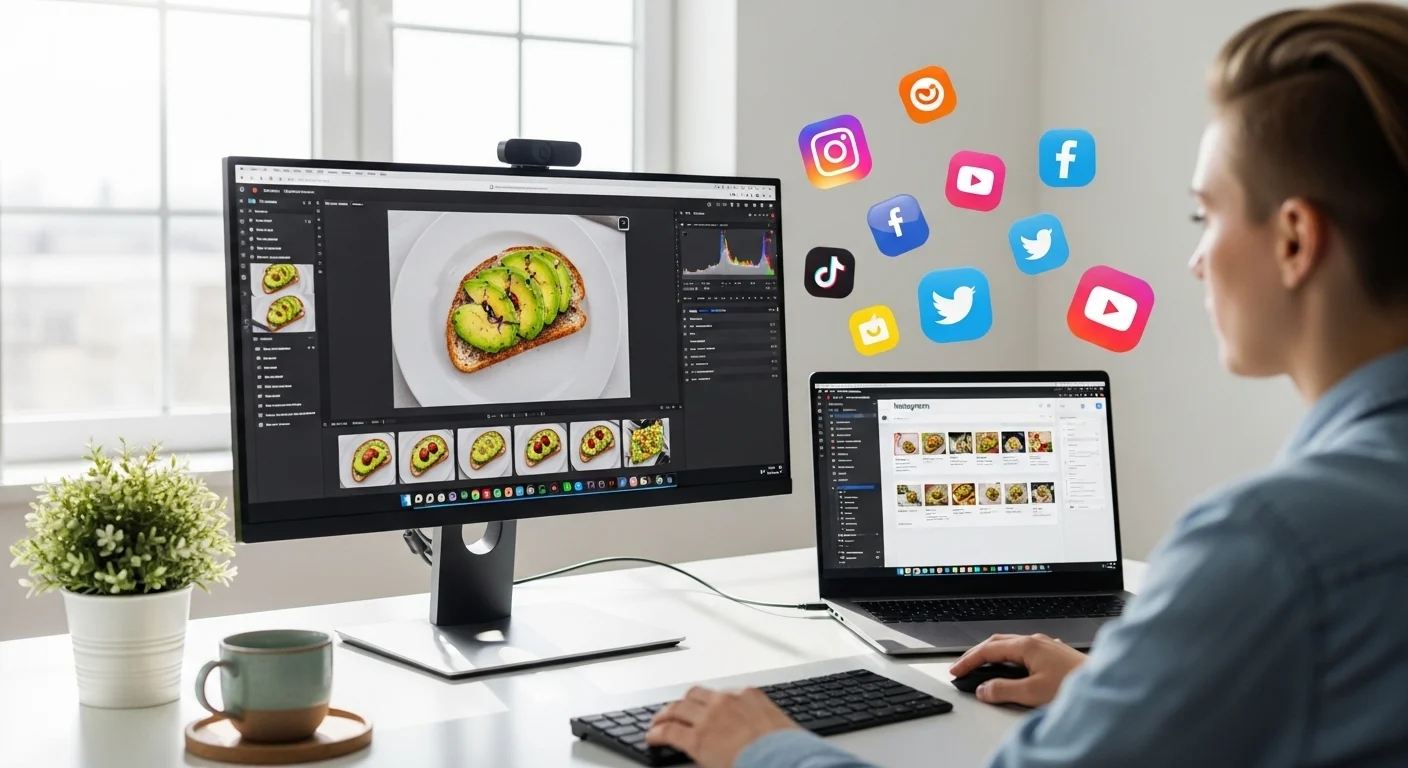
For many years, Instagram was designed primarily for smartphones. The mobile-first approach shaped how people interacted with the platform: quick scrolling, posting photos on the go, sending messages, and reacting to stories.
However, the way people work and create content has evolved dramatically. Today, millions of users—especially content creators, marketers, photographers, designers, and business owners—prefer managing their Instagram accounts from a desktop or laptop computer.
Using Instagram on PC or Mac offers several advantages:
- Larger screen for content editing and viewing 👀
- Faster typing for comments and messages ⌨️
- Easier file management from your computer 🗂️
- More efficient multitasking and productivity ⚡
- Professional tools integration (design, analytics, scheduling)
The desktop experience has improved significantly in recent years. You can now:
- Upload photos and videos
- Manage direct messages
- Post Stories
- Watch Reels
- Comment and interact with posts
- Edit your profile
- Manage multiple accounts
In this ultimate guide, you will learn everything about using Instagram on PC and Mac, including:
- How to access Instagram on desktop
- Posting photos and videos
- Managing messages
- Editing content before uploading
- Scheduling posts
- Best desktop tools
- Productivity workflows
- Security practices
- Advanced tips for creators and businesses
Whether you are a casual user or a professional social media manager, this guide will help you unlock the full potential of Instagram on desktop.
1. Accessing Instagram on PC and Mac 🌐
The easiest way to use Instagram on a desktop computer is through the web browser version.
Step-by-Step Login Guide
1️⃣ Open a web browser (Chrome, Safari, Edge, or Firefox)
2️⃣ Go to instagram.com
3️⃣ Enter your username, email, or phone number
4️⃣ Type your password
5️⃣ Click Log In
After logging in, you will see the familiar Instagram interface.
Main Sections of Instagram Web
| Section | Description |
|---|---|
| Home Feed | Displays posts from accounts you follow |
| Explore | Discover new content |
| Reels | Watch short-form videos |
| Messages | Send and receive direct messages |
| Notifications | Likes, follows, comments |
| Profile | View and manage your account |
The desktop interface is clean and similar to mobile but optimized for larger screens.
2. Understanding the Instagram Desktop Interface 🖥️
Instagram’s web layout focuses on usability and clarity.
Main Navigation Panel
On the left side of the screen you usually see:
- 🏠 Home
- 🔎 Search
- 🎬 Reels
- ✉️ Messages
- ❤️ Notifications
- ➕ Create
- 👤 Profile
This sidebar makes navigation quick and efficient.
Feed Layout
The center of the screen displays the content feed, including:
- Posts
- Carousels
- Videos
- Sponsored content
- Reels previews
On the right side you may see:
- Suggested accounts
- Profile shortcuts
- Account switching options
3. Posting Photos and Videos from PC or Mac 📸
Uploading content from desktop has become much easier than before.
How to Upload a Post
Follow these steps:
1️⃣ Click the Create (+) button
2️⃣ Choose Select from computer
3️⃣ Pick the image or video file
4️⃣ Adjust the crop
5️⃣ Add filters (optional)
6️⃣ Write a caption
7️⃣ Add location or tags
8️⃣ Click Share
Done! Your post will appear on your profile.
Supported File Formats
| Type | Supported Formats |
|---|---|
| Images | JPG, PNG |
| Videos | MP4, MOV |
| Aspect Ratios | Square, landscape, portrait |
Recommended sizes:
| Content Type | Resolution |
|---|---|
| Square Post | 1080 × 1080 |
| Portrait | 1080 × 1350 |
| Landscape | 1080 × 566 |
4. Uploading Instagram Stories from Desktop 📖
Stories are one of Instagram’s most popular features.
Although editing tools are more advanced on mobile, desktop uploads are still very useful.
How to Post a Story on PC/Mac
1️⃣ Click your profile picture
2️⃣ Select Add to Story
3️⃣ Upload image or video
4️⃣ Add text or stickers (limited options)
5️⃣ Publish
Stories disappear after 24 hours, unless saved as highlights.
5. Watching and Managing Reels on Desktop 🎬
Reels are Instagram’s short-form video feature.
On desktop you can:
- Watch Reels
- Like and comment
- Share to messages
- Explore trending content
However, editing and creating Reels is still better on mobile apps.
Desktop is mainly useful for:
- Viewing
- Engagement
- Analytics monitoring
- Sharing content
6. Managing Direct Messages on PC 💬
One of the biggest advantages of using Instagram on desktop is Direct Messages (DMs).
Typing with a keyboard is significantly faster.
Messaging Features Available on Desktop
| Feature | Available |
|---|---|
| Send text messages | ✅ |
| Send emojis | ✅ |
| Send images | ✅ |
| React to messages | ✅ |
| Voice messages | ❌ |
| Video calls | ❌ |
Why Desktop Messaging is Powerful
Benefits include:
✔ Faster typing
✔ Easier conversation management
✔ Quick copy/paste
✔ Customer support efficiency
This is especially helpful for:
- Businesses
- Influencers
- Community managers
7. Editing Images Before Uploading 🖼️
Desktop computers allow access to powerful editing tools.
Instead of relying only on Instagram filters, you can use professional editing software.
Common editing improvements:
- Color correction
- Exposure adjustment
- Cropping
- Sharpness
- Noise reduction
Example Editing Workflow
| Step | Action |
|---|---|
| 1 | Import photo |
| 2 | Adjust brightness/contrast |
| 3 | Correct color temperature |
| 4 | Crop to Instagram ratio |
| 5 | Export optimized file |
| 6 | Upload to Instagram |
Professional-looking content dramatically improves engagement.
8. Writing Better Captions on Desktop ✍️
Captions are much easier to write and edit on PC or Mac.
Advantages:
- Full keyboard typing
- Spell checking
- Easier formatting
- Quick emoji insertion
Example Caption Structure
A strong Instagram caption often includes:
1️⃣ Hook
2️⃣ Main message
3️⃣ Call to action
4️⃣ Hashtags
Example:
🌅 Sunrise moments remind us to slow down.Nature gives us beauty every single day—if we stop long enough to notice.What's your favorite morning ritual?👇 Tell me in the comments.#morningvibes #naturelovers #sunrise
9. Using Hashtags Strategically #️⃣
Hashtags help content reach new audiences.
Best Practices
- Use 5–15 hashtags
- Mix popular and niche tags
- Avoid spammy hashtags
- Place them at the end of captions
Hashtag Strategy Table
| Type | Example | Purpose |
|---|---|---|
| Popular | #photography | High reach |
| Niche | #mountainsunset | Targeted audience |
| Community | #travelgram | Engagement |
| Branded | #YourBrandName | Branding |
10. Managing Multiple Instagram Accounts 🔄
Many users manage multiple profiles, such as:
- Personal
- Business
- Creator
- Client accounts
On desktop you can switch between accounts quickly.
How to Switch Accounts
1️⃣ Click your profile picture
2️⃣ Select Switch Accounts
3️⃣ Choose another account
This is extremely useful for social media managers.
11. Scheduling Instagram Posts from Desktop ⏰
Scheduling is essential for professional content planning.
Benefits include:
- Consistent posting
- Time management
- Campaign planning
- Audience targeting
Basic Content Calendar Example
| Day | Content |
|---|---|
| Monday | Motivational post |
| Wednesday | Educational content |
| Friday | Reel |
| Sunday | Community engagement |
Planning content ahead of time increases growth and engagement.
12. Instagram Analytics and Insights 📊
Desktop screens are ideal for analyzing performance data.
Metrics to monitor:
- Reach
- Impressions
- Engagement
- Follower growth
- Saves
- Shares
Engagement Formula
Engagement Rate =
(Likes + Comments + Shares + Saves) / Followers
Example Performance Table
| Post | Likes | Comments | Saves | Engagement |
|---|---|---|---|---|
| Post 1 | 540 | 32 | 14 | High |
| Post 2 | 310 | 12 | 5 | Medium |
| Post 3 | 120 | 3 | 2 | Low |
This helps you understand what content works best.
13. Best Desktop Workflows for Creators 🎨
Using Instagram from desktop allows powerful workflows.
Example Creator Workflow
1️⃣ Shoot photos or videos
2️⃣ Transfer to computer
3️⃣ Edit with professional software
4️⃣ Prepare captions
5️⃣ Schedule or upload posts
6️⃣ Monitor engagement
7️⃣ Respond to comments
This approach saves time and improves quality.
14. Security Tips for Instagram Desktop Users 🔒
Security is extremely important when managing accounts from a computer.
Best Practices
✔ Use strong passwords
✔ Enable two-factor authentication
✔ Avoid public computers
✔ Log out after sessions
✔ Monitor login activity
Strong Password Example
H8!sunsetTravel_2026#Create
15. Common Instagram Desktop Limitations ⚠️
While desktop Instagram is powerful, it still has some limitations.
| Feature | Mobile | Desktop |
|---|---|---|
| Advanced Story editing | ✅ | ❌ |
| Reels editing | ✅ | ❌ |
| Live streaming | ✅ | ❌ |
| Voice messages | ✅ | ❌ |
Instagram continues improving desktop features, but mobile still has some exclusive tools.
16. Productivity Tips for Power Users ⚡
To maximize efficiency on PC or Mac:
Use Keyboard Shortcuts
Examples:
- Ctrl + Enter → Send message
- Tab → Navigate fields
- Ctrl + C / Ctrl + V → Copy and paste captions
Organize Media Files
Example folder structure:
Instagram_Content/
   Photos/
   Reels/
   Stories/
   Edited/
Batch Create Content
Create several posts at once to save time.
17. Future of Instagram on Desktop 🚀
The desktop experience is improving every year.
Possible future improvements include:
- Full Reel editing
- Live streaming
- Advanced analytics
- Better messaging features
- Creator dashboards
As Instagram evolves, desktop tools will likely become even more powerful for professional use.
Conclusion 🎯
Using Instagram on PC and Mac is no longer just a basic alternative to mobile—it has become a powerful productivity platform for creators, businesses, and everyday users.
Desktop usage offers major advantages:
- Larger screen for editing and browsing
- Faster typing for captions and messages
- Easier file management
- Professional content workflows
- Better analytics and planning
By combining desktop efficiency with mobile flexibility, users can create a complete Instagram strategy that improves both content quality and audience engagement.
Whether you are:
📷 A photographer
📈 A marketer
🎨 A designer
🏢 A business owner
📱 Or a casual user
Learning how to use Instagram on PC or Mac effectively will help you save time, stay organized, and grow your presence on the platform.
Leave a Reply